
Reusable & personal agents
Save an agent's job once, connect it to as many rooms as you like, and let each room decide what it may actually touch.
An agent in Openbook is a saved configuration — a job description for an AI helper. One agent holds a name, a purpose, its instructions, an optional set of skills, a provider and default model, a permission mode, and its step and token limits. It is not a running process, and it is not tied to one room.
The sentence the product repeats, because everything else follows from it:
Instructions are reusable. Conversations and connections stay in each room.
So one "Researcher" agent can answer in four different rooms without those rooms sharing a single conversation, a single file, or a single permission. Changing the instructions changes the job everywhere. It does not merge the rooms.
Rolling out. Every part of this feature sits behind a server setting that is off until an operator turns it on —
FEATURE_REUSABLE_AGENT_PROFILESfor the directory andFEATURE_PERSONAL_AGENTSfor personal agents. Both default off; on the hosted Openbook (app.openbook.work) both are on as of 21 September 2026. If your workspace sidebar has no Agents entry, it is not enabled on your server yet, and nothing is missing from your workspace. The directory says as much when it is off: "This server has not enabled the agent directory."
Where it lives
Two entries appear in the workspace sidebar, between My Tasks and Settings:
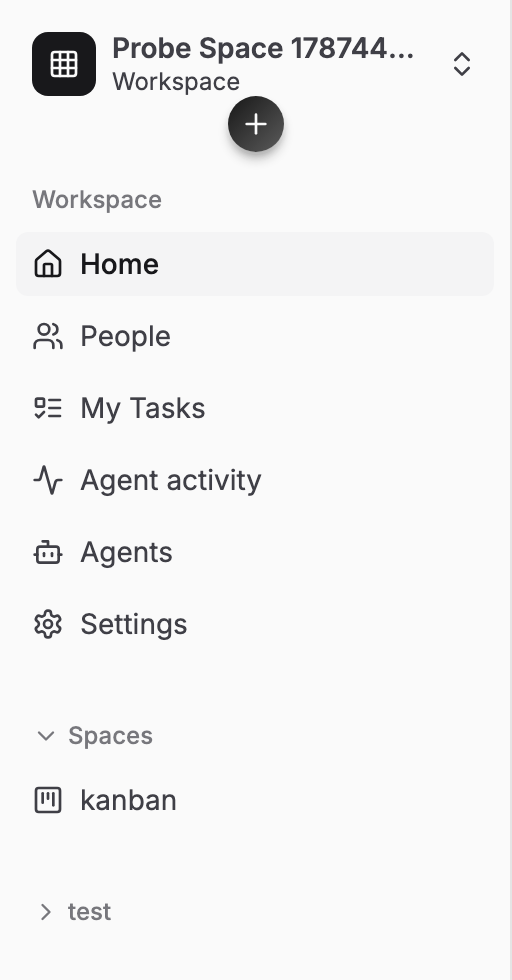
- Agents — the directory for this workspace's organization. Create agents, publish versions, connect them to rooms.
- Agent activity — every agent run across the rooms you can read.
Two kinds of agent
| Organization agent | Personal agent | |
|---|---|---|
| Owned by | the organization | one person |
| Who can create it | organization owners and admins | any member, when personal agents are enabled |
| Visible to | the organization's directory | only the owner, until they share it |
| Starts | published and connectable | off, with sharing off |
| Runs on | organization API keys, or the platform's managed allowance | the same, or the owner's own API keys held at SSO (My keys) |
| Gets its own room | no | yes — a private execution room, <Name> — private |
Creating an organization agent is an organization permission, not a workspace one. The refusal is explicit about the difference: "Only organization owners and admins can create or publish profiles. Being a workspace admin is a different permission."
Create an agent
- Open Agents in the workspace sidebar and press Create agent.
- Under Who is this agent for? choose Personal or Organization.
- Give it a Name, and optionally a Purpose — one line on what it is for, which is what your teammates read in the directory.
- Choose a Provider and Default model. If the list is empty, press Refresh models; if there is nothing to refresh, the organization has no keys yet and the dialog links you to Manage API providers in Organization AI settings ↗, which opens the organization's page at your Vibeforce account. Leaving the model blank is fine — the agent then uses whatever the room uses.
- Write the Instructions. This is the only field publishing insists on.
- Switch to Advanced if you want to set permissions, limits and skills now. Anything you enter is kept when you switch back to Basic.
- Press Create & publish, or Save draft to finish later.
The summary box under the form tells you what publishing does and does not do: "Publishing saves a version. It does not start a run. Room permissions and limits still apply."
What it may do
Four permission modes, from the most cautious up:
| Mode | What it means |
|---|---|
| Plan only | Reads and drafts. Nothing is written or sent. |
| Ask first | Asks before every write, commit or outside call. |
| Accept writes | Writes inside the room without asking. Outside calls still ask. |
| Run unattended | Writes and outside calls proceed without asking each time. |
Every mode is available to every agent on the built-in engine. A Cursor Cloud Agent is the one exception: it is launched from a story and works at Cursor, so this ladder does not apply to it.
Skills
A skill is reusable guidance for one kind of job: a Skill name, a When to use it line, and the Guidance itself. An agent can carry up to 20 of them. They travel with the version, so a room that connects the agent gets the skills too.
Limits
| Default | Ceiling | |
|---|---|---|
| Instructions | 20,000 characters | 40,000 |
| Purpose | 2,000 characters | 4,000 |
| Skills per version | 20 | 50 |
| Step limit | 200 | 400 |
| Tokens per run | 5,000,000 | 20,000,000 |
| Agents per organization | 200 | 1,000 |
| Versions per agent | 500 | 2,000 |
Leave a limit blank and the room's own limit applies. Existing organization limits still apply either way.
Versions, and why a room does not move
Publishing creates a version. A room is connected to one exact version and stays there:
A room stays on the version it was connected with. Publishing a new one never changes a room, and never changes work already running.
That is the whole point of the design. You can rewrite an agent's instructions on a Tuesday without any room silently changing behaviour underneath the person using it. Each room is offered the new version and decides.
When a newer version exists, the room's agent panel shows Update available: review changes. The review names the jump (v3 to v4) and lists what actually differs — instructions, model preference, permission mode, step limit, token limit, skills — and you either Use v4 for new runs or Stay on v3. Accepting applies to new runs; work already running keeps what it started with.
Only one draft can be open at a time, and the reason is worth knowing: two drafts would mean whichever was published second quietly discarded the other.
Connect it to a room
An agent answers in an AI agent room — the room type the build agent lives in. Connecting is a change to that room's settings, so it needs room settings access, which is separate from being allowed to edit the agent.
- Open the agent and press Connect to room.
- Pick a Room. Only rooms you can see are listed.
- Work down the drawer: Destination, Conversations, What <Name> asks for, and what this room grants, Behavior, Execution and limits.
- Press Connect to <room>.
If the room already has an agent, the button reads Replace in <room>, and replacing is not retroactive: new requests use the new agent, and work already accepted finishes under what it started with.
Scoped execution
This is the part worth reading twice. Connecting an agent grants it nothing by itself.
An agent version publishes a list of things it asks a room for. The room answers each one separately, and the drawer is blunt about the distinction: "These are requirements, not permissions." Each requirement gets a Granted here choice, and until something is chosen the answer is Nothing chosen.
A room can only ever narrow what the agent asked for:
A room cannot raise a limit. Room settings can narrow what a profile asks for, never widen it.
So an agent published with Run unattended and a five-million-token budget can be connected to a room that allows Plan only and fifty thousand tokens. The reverse is refused. If a required capability has nothing in the room to answer it, the agent cannot be connected there at all, and the refusal says which.
Inside the room's settings, every line is labelled with where it came from — From <Name> v3 for anything inherited, Only in this room for anything the room narrowed locally. You can always see whether a limit is the agent's or this room's.
Personal agents
A personal agent starts as private as it can be: only you can see it, it is off, and sharing is off. Publishing one creates a private execution room for it automatically, and Open agent takes you there.
Sharing one
The Sharing tab has four separate questions, each with its own answer:
- Who can see this agent — Only me / Selected people / Everyone in the organization
- Who can message it — Only me / Selected people / Everyone who can see it
- Who can assign work — Only me / Selected people / Everyone allowed to give instructions
- Who can operate or stop it — Only me / Selected operators / Everyone who can see it
They nest, and the form keeps them consistent for you: nobody can message an agent they cannot see, or assign work they cannot message about.
Sharing is forward-looking only. Before you save, the panel says: "Changing these defaults pauses automatic pickup. It never adds people to old conversations, files, summaries, or replay input." Narrowing sharing also sends a stop request to any active run of that assignment.
A teammate you have shared with sees exactly what you granted, as badges — Message, Assign, Operate, History, each allowed or not — under the line "The owner shared only the capabilities shown here. Private history and account settings stay private."
Running on your own keys
A personal agent can run on Organization AI — the organization's keys or managed allowance, like everything else — or on My keys: API keys you hold yourself.
- Your keys live on My API keys (
/settings/ai). Add a key per provider (up to five per provider), see the models each key unlocks and switch on the ones you want offered, and watch each key's usage. A Cursor connection sits on the same page. - In the agent editor, Runs on chooses between Organization AI and My keys, and a My keys agent names which key it runs on. Effort appears for models that offer reasoning levels.
- A personal-key run spends the owner's key on every call, helpers included, and never falls back to the organization's key. If the key is switched off or removed, the run is refused rather than moved.
- An organization owner or admin can switch off Let members run agents on their own personal API keys in this organization, on the organization's AI self hosted page at your Vibeforce account; it is on by default. See AI configuration.
Sharing an agent does not share your keys. Who may use a personal agent is its message list: the owner and the people on it may message it and trigger it, in its own room, in channels it is added to, on story mentions and in shared rooms it is connected to — and those runs spend the owner's key. Everyone else is refused. Before any run starts, Openbook also checks with SSO that the account starting it is not paused or blocked.
Asking an agent in a chat channel
A chat channel does not run an agent of its own. It is bound to an existing AI room: the agent answers in the channel but thinks in the room, and "Private conversations in the AI room are never read and never copied here."
Answering in channels is behind FEATURE_CHAT_AGENT_DISPATCH, off by default and off in production unless enabled, and it also needs the operator to set finite daily caps.
Once a channel is connected, mention @agent and put your request after the mention. Before you send, the composer previews the consequence — that everyone who can read the channel will see the reply, and that files are not included in an agent request yet. The ask then appears as a card moving through Queued, Working and Answered, with Stop and Retry on it.
One agent per channel. The mention reaches whichever agent is connected, so connecting a different one replaces it rather than adding a second.
Connecting a channel needs room settings access on both rooms, and both have to be open to the whole workspace. A room with a custom member list is refused, because binding it would hand one audience access to the other's material. Direct messages cannot be connected at all.
For the channel itself, see Chat.
Agent activity
Agent activity lists agent work across every room you can read, and only those — the page is filtered by what you have access to, not by who started it.
Filter by Room, Started by (Everyone or Started by me) and History, then narrow by status: All, Needs attention, Working, Finished, Failed. Opening a card shows the result, the question it is waiting on, and what it did.
Note what the statuses do not include. There is no "Running" and no "Online", because an agent is a job description rather than a live process, and there is no "Stopped" anywhere in the product either. A stop is a request a worker has to acknowledge, so the furthest the interface will go is Stop requested, with the caveat that "a stop request does not prove process termination."
Turning one off
Three different scopes, three different effects:
- Off / Pause pickup / Stop current task — the room's execution controls, at the top of the room. Immediate, and reversible.
- Remove from room — new requests stop using it, existing conversations remain, and active work is asked to stop.
- Retire — new requests are blocked everywhere. It cannot be connected to any new room, rooms already using it stop starting new work with it, and work already accepted finishes under the version it started with. Old messages keep the name and version they were answered with. Nothing is deleted: conversations, versions and the audit record all stay.
Who can do what
| Organization owner / admin | Create, edit, publish and retire organization agents. |
| Any member | Create and fully manage their own personal agents, when enabled. |
| A personal agent's owner | The only person who sets its sharing, which keys it runs on, and its workflows. |
| A teammate shared with | Exactly the capabilities the owner granted, and nothing implied by them. |
| Room settings access | Required to connect, replace or remove an agent in a room, or to bind one to a channel. |
Authority is re-read on every single invocation rather than cached: a successful result is never reusable as proof that the next one is allowed.
What it costs
An agent run is an AI run, and it is paid for the same way everything else is. In self hosted mode it goes on your organization's own provider key. In managed mode it counts against the account's token allowance, and an agent whose organization has spent its allowance has nothing to run on until the allowance turns over.
A personal agent set to My keys is the exception: it runs on its owner's own key, on every call, and never on the organization's. See AI usage & the token allowance and AI configuration.
Where to go next
- The build agent — the room an agent works in, and its two engines.
- Cursor Cloud Agents — a personal agent that works a story at Cursor, on your own account.
- AI agent room — the room type itself.
- Chat — channels, and asking an agent in one.
- Workflows, actions & skills — automating the work an agent does.